Code Mode
Code Mode transforms ChatStack AI from a chat application into a programming tool. Whether you want to copy-paste code snippets or to directly share the files and folders of your project via the Workspace functionality, Code Mode will format your codebase for the AI model and return direct file modifications (diffs). Apply these code changes with a single click. Easy code review with perfect formatting, easy implementation with just one button.
How Code Mode Works
Code Mode follows the standard approach of AI chat apps with slight improvements in key areas to make the programming experience even better:- Select Code Mode in the chat footer will tell the app that code is expected and that the output requires special formatting as code diffs. This type of output is the main different with Chat Mode, which in turns provides typical explanations with formatted code blocks.
- The user provides the desired input and context. There are two methods: traditional prompts with explanations and code snippets, and workspaces with files and directories. These two input methods can be combined for providing the best context. The app will handle their combination into a unified message that maximizes the LLM understanding.
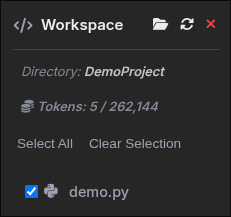
For the workspace, ChatStack AI uses the modern File System Access API built into your browser. This allows connecting to specific directories and files in your computer always selected by you. When you grant permission, the app reads your workspace files and packages them into an optimized XML structure. This XML acts as highly structured context, helping AI models to better understand your entire project architecture.
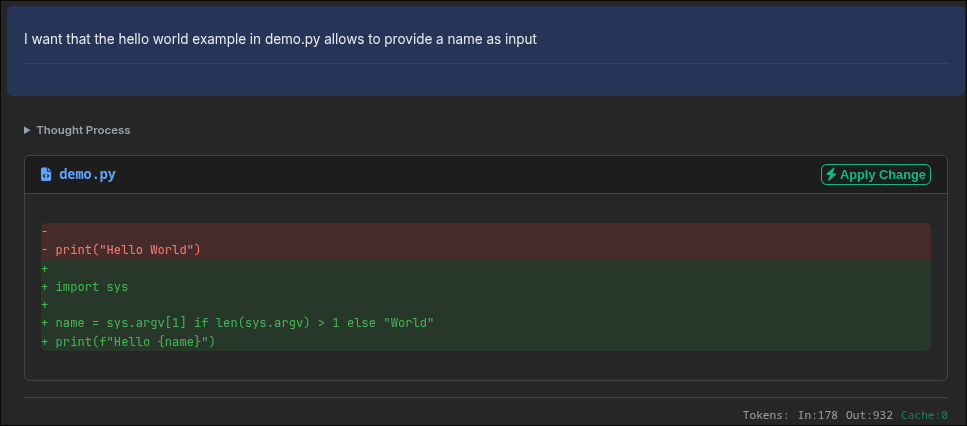
- Output formatting: once the AI model has finished formulating the response and structured it as ChatStack AI defines, the code diffs are enclosed in blocks with dedicated "Apply" buttons to seemlesly implement the changes.
- Workspace Refresh: after applying changes and before sending the next message, the workspace and its content are automatically refreshed to catch any change that might have happened. In this way, the user does not need to worry about constanly updating the context manually and can focus on coding.
There is also a refresh button to update the workspace manually without sending a new message.
Using Code Mode
- Select Code Mode: on the Chat page, toggle your session from "Chat" to "Code" using the mode selector in the footer.
- Toggle Workspace: click on the folder icon in the chat footer to toggle the workspace menu in the chat sidebar.
- Mount Workspace: click the "Select Local Directory" button in the Workspace sidebar. Your browser will prompt you to grant read/write access to a local directory.
Security Note: ChatStack AI operates locally by default. Your code is not sent to our servers unless you enable Cloud Sync. If not enabled, it is only sent directly to the LLM provider you configured via your API key. If you are syncing your chats, you have nothing to worry, we do not use your data for training or commercial purpose (see our Terms & Conditions).
- Select Files: use the built-in file explorer to check the files you want to include in the context. Be mindful of your token limits! (Although you are covered by the token counter)
- Prompt the AI: ask the AI to perform a task (e.g., "Update the docs handler to include the Code Mode page and check that the custom CSS classes are in place").
- Review & Apply Diffs: the AI model will return structured code diffs. ChatStack AI parses these diffs, allowing you to review the changes and apply them directly to your local files with a single click.